
Microsoft Launcher
Microsoft CorporationPersonalization
4.766.75K Reviews
- Version
- 6.260402.0.1178950
- Installs
- 50.00M
- Age Rating
- Everyone
Screenshots
Our Review of Microsoft Launcher
 Analysis by Appyee
I usually judge a launcher by what happens after the first week. A new home screen can feel exciting for a few days, but the real test is whether it helps me move through ordinary tasks without becoming another thing to manage. Microsoft Launcher is interesting because it tries to make an Android phone feel more organized while also connecting naturally with Microsoft services. After spending time with it, I see a practical tool rather than a dramatic visual makeover: its value comes from routines, small controls, and the way it puts useful information close to the home screen.
As a free personalization app from Microsoft Corporation, it is aimed at people who want more control than the default launcher offers without paying for a premium replacement. It is available to everyone, supports Android 7.0 and later, and its current version is 6.260402.0.1178950. The app has reached over 50 million installs, with a 4.7 average from around 1.7 million ratings. Those figures suggest that it has become a familiar option, but popularity alone does not make a launcher worth keeping. The more useful question is whether it still earns its place once the novelty disappears.
What Microsoft Launcher feels like after the first setup
The first appeal is control without requiring me to rebuild the entire phone from scratch. I can decide how the home screen is arranged, how icons are presented, and which information deserves a quick glance. That sounds basic, but it changes the experience when the default launcher feels crowded or too rigid. Instead of treating the home screen as a static collection of app shortcuts, Microsoft Launcher encourages me to use it as a starting point for daily actions.
The strongest early impression is the balance between personalization and organization. I can make the layout feel more personal, but the useful part is deciding what should be visible and what should stay out of the way. A weather panel, calendar information, notes, or recent activity can be more valuable than a decorative wallpaper when I am checking the phone between meetings or while commuting. The launcher works best when I resist adding everything and choose only the items I genuinely check.
I also appreciate that the app does not force a particular visual identity on me. Someone who likes a clean screen can keep the arrangement restrained, while another person can use more panels and shortcuts. This flexibility is one reason it suits households where people use their phones very differently. It is not limited to one type of Android user, although getting the best result takes a little experimentation during the first few days.
Small adjustments make the biggest difference
One of my first useful changes was separating frequent actions from occasional apps. I kept communication, navigation, banking, and camera access close to my thumb, then moved less important apps away from the first screen. This is more effective than simply adding more folders. A launcher can only reduce friction if the layout reflects real behavior, so I recommend watching which icons I reach for repeatedly before making a final arrangement.
Microsoft Launcher is also a good place to test whether glanceable information actually improves a routine. I found that a compact view of upcoming commitments can be helpful, but a screen overloaded with panels becomes another source of distraction. The practical tip is to treat each visible element as having to justify its space. If I do not use a panel for several days, I remove it rather than keeping it because it looked useful during setup.
The first-week appeal is therefore less about a spectacular transformation and more about discovering a calmer way to enter the phone. The launcher gives me enough room to create a personal system, but it does not automatically create that system for me. Users who enjoy arranging their digital workspace will probably have fun with it. Users who want to install an app and never make another decision may find the initial setup more involved than expected.
Where the recurring value comes from
After the initial excitement fades, a launcher needs to save time in small, repeatable ways. Microsoft Launcher earns its keep when I use the home screen as a dashboard for the day rather than as a decorative backdrop. The recurring value comes from reducing the number of taps needed to reach things I check often and from keeping personal information in a predictable place.
A realistic example is a busy weekday. In the morning, I check the next appointment, open navigation, and send a quick message. Later, I return to the phone to review a note or find a frequently used file-related shortcut. With a carefully arranged launcher, those actions begin from the same familiar screen instead of requiring me to search through a busy app drawer. None of these improvements is dramatic on its own, but repeated several times a day, the consistency becomes noticeable.
This is where Microsoft Launcher differs from a purely visual alternative. Some launchers focus mainly on icon packs, gestures, animations, or unusual layouts. Those options can be enjoyable, and they may be better for someone who wants a bold redesign. Microsoft Launcher feels more useful to me when I am trying to combine phone personalization with an orderly routine. Its Microsoft identity also makes more sense for people already using Microsoft tools across work and personal tasks, because the launcher can feel like part of an existing workflow rather than an isolated skin.
That does not mean it replaces every productivity app. I would not install it expecting a full task-management system or a substitute for a dedicated calendar, notes app, or file manager. Its role is to make access and overview easier. The distinction matters: the launcher organizes the doorway to information, but it does not magically improve the information itself.
Useful workflows for work and home
For work, I would place communication and calendar access where they are immediately reachable, then keep personal entertainment and shopping apps on a separate page. This creates a small mental boundary without requiring two phones. For home use, I might reverse the priority and put music, smart-home controls, maps, and family contacts closer to the main screen. The benefit is not that the launcher knows my priorities automatically; it is that I can make those priorities visible.
Another worthwhile workflow is using folders sparingly. Folders are useful for infrequent categories such as travel or utilities, but they are poor storage for actions I perform every day. If I open an app several times daily, I keep it visible. If I use it once a month, I place it in a folder or let search handle it. This simple rule prevents the home screen from becoming a carefully decorated obstacle course.
I also found that the launcher rewards periodic editing. A layout that worked during a holiday may not suit a work-heavy month. Moving a few shortcuts when my routine changes is enough; I do not need to redesign everything. That is an important long-term advantage because it keeps maintenance manageable instead of turning customization into a hobby I have to constantly feed.
Who benefits most from the Microsoft connection
The app is particularly appealing if I already rely on Microsoft services and want the phone to reflect that habit. The continuity can make the device feel more coherent, especially when I move between a phone and other devices during the day. It is not necessary to be deeply invested in that ecosystem, but the more often I use Microsoft-based calendars, reminders, documents, or account services, the more natural the launcher’s overall approach feels.
On the other hand, someone who prefers Google’s Android experience exactly as delivered may gain little. The default launcher is often simpler and already integrated with the phone’s manufacturer. If I rarely customize the home screen, do not use Microsoft services, and value the smallest possible number of moving parts, switching may not produce enough daily benefit to justify the adjustment period.
Maintenance, friction, and the cost of keeping it useful
A launcher is always running at the center of the phone experience, so even a free app has a maintenance cost in attention. Microsoft Launcher asks me to make choices about layout, visible information, and how much of its organization style I want to adopt. That is not a serious burden, but it is still a burden. The app works best when I spend a little time shaping it and then stop tinkering.
The main maintenance task is resisting clutter. Every newly installed app creates a temptation to add another shortcut or folder. If I accept that invitation, the home screen slowly becomes a catalogue rather than a useful starting point. I recommend reviewing the first screen whenever it begins to feel crowded and removing anything I can reach just as quickly through search. This keeps the launcher focused and protects the original reason for installing it.
There is also a transition cost when changing phones or switching back to the manufacturer’s launcher. A personalized arrangement becomes part of muscle memory, so moving away can feel inconvenient. That is not unique to this app, but it is worth considering before investing heavily in a complex layout. I prefer a structure simple enough to recreate if needed, rather than one dependent on dozens of carefully positioned shortcuts.
Another source of friction is that a launcher sits between me and the rest of Android. If the phone manufacturer has its own gestures, app drawer behavior, or visual conventions, Microsoft Launcher may not feel perfectly identical to the original environment. Small differences can matter more than expected when I use the device quickly. I advise testing the gestures and navigation style during the first week rather than assuming the change will be invisible.
Where fatigue can appear over time
The first kind of fatigue comes from over-customization. Wallpapers, icon arrangements, panels, and shortcuts can make the phone feel fresh, but constant adjustment eventually becomes digital housekeeping. Microsoft Launcher does not eliminate that tendency; it gives me more control, which means I can also create more things to manage. The healthiest approach is to customize for speed and clarity, not for endless novelty.
The second kind comes from information overload. A glanceable feed is helpful when it answers a question quickly, such as what is next on the calendar. It becomes tiring when I have to scan several cards to find the one detail I wanted. In my experience, the launcher is better when I keep visible content selective. This is a genuine trade-off: more information can reduce app switching, but too much information makes the home screen feel busy.
The third issue is ecosystem preference. Microsoft Launcher may feel less compelling if my digital life is built around another company’s services and I do not want an additional layer between them. I can still use it as a general Android launcher, but its distinctive appeal is weaker in that situation. A minimalist launcher may be a better choice if I want almost no visual or organizational overhead, while a highly themed launcher may suit me better if expressive design is the main goal.
Performance expectations and practical choices
I would choose this app for an Android phone that still supports Android 7.0 or later and where the default home screen feels limiting. Its broad compatibility makes it accessible to people who are not using the newest hardware. Still, compatibility is not the same as identical experience across every phone. Manufacturer software, screen size, navigation settings, and existing Microsoft account habits can all affect how natural the launcher feels.
The fact that it is free lowers the risk of trying it. I can test the arrangement for a week, use it during normal routines, and decide based on actual behavior rather than screenshots. That trial is more informative than judging it immediately after installation. If I keep reaching the right apps faster and the home screen stays calm, it has earned a place. If I spend more time adjusting it than benefiting from it, returning to the default launcher is sensible.
For families, the Everyone content rating also makes the app broadly approachable. That does not mean every family member will want the same setup. A teenager who wants expressive themes and a parent who wants a straightforward dashboard may both use it, but they will probably need different arrangements. The flexibility is useful here, provided each person is willing to spend a few minutes making the screen their own.
My long-term verdict on keeping it installed
Microsoft Launcher passes the long-term test for me because its best features are habits rather than novelties. Once I organize the first screen around actions I repeat, the app becomes easy to forget in the best possible way. I am not opening it to admire a redesign; I am using the phone and noticing fewer small interruptions. That kind of recurring value is modest, but it is exactly what I want from a launcher.
I would recommend it to someone who wants a more deliberate Android home screen, especially if Microsoft services already play a role in their day. It is also a sensible option for users who want personalization without committing to an aggressively themed or unusual interface. The free price makes experimentation straightforward, and the large user base and strong average rating show that it has broad appeal, though neither should replace personal testing.
I would skip it if I am satisfied with the manufacturer’s launcher, dislike arranging interfaces, or want a launcher whose main purpose is visual expression. I would also avoid building an overly complicated layout, because the app’s lasting advantage disappears when the home screen becomes another project. In those cases, the default launcher or a more minimalist alternative may be a better fit.
My final advice is to install it with one clear goal: make the first screen faster to use. Put only the actions I repeat, keep glanceable information limited, and give the arrangement several ordinary days before judging it. If the phone feels easier to navigate after the initial novelty has gone, Microsoft Launcher has done its job. If the customization itself becomes the main activity, I would simplify the setup or move on. For me, it earns lasting space not because it constantly demands attention, but because a restrained setup quietly supports the routines I already have.
Verdict
Strengths of Microsoft Launcher
- Clean, customizable home screen with useful productivity widgets.
- Seamless integration with Microsoft 365, Outlook, and OneDrive.
- Bing wallpaper rotation keeps the background fresh automatically.
- App drawer supports sorting, folders, and a practical search function.
- Backup and restore make it easy to transfer your launcher setup.
Limitations of Microsoft Launcher
- Some features work best with a Microsoft account and related services.
- The interface may feel less familiar to users accustomed to stock Android.
- Bing and Microsoft content can be difficult to remove completely.
- Advanced customization options are more limited than in some rival launchers.
- Battery use may increase slightly with daily wallpapers and active widgets.
Other Releases by Microsoft Corporation
View All
Microsoft OneDrive
Productivity4.6

Microsoft OneNote: Save Notes
Productivity4.6

Link to Windows
Productivity4.0

Microsoft PowerPoint
Productivity4.8
Similar Picks in This Category
View All
Microsoft SwiftKey AI Keyboard
SwiftKey4.3

Wallpapers
Google LLC4.1

Zedge™ Wallpapers & Ringtones
Zedge4.7

Yandex Browser with Alice AI
Direct Cursus Computer Systems Trading LLC4.3

Ringtone Maker:create ringtone
Big Bang Inc.4.7

Fonts Keyboard
Fonts Keyboard3.9
Frequently Asked Questions
What is Microsoft Launcher, and what does it do on Android?
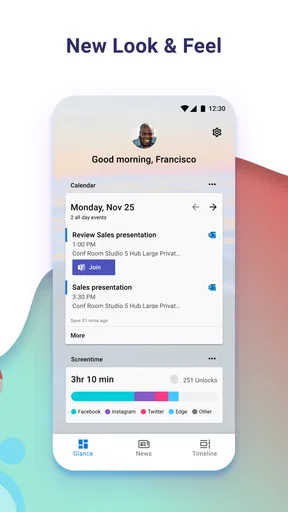
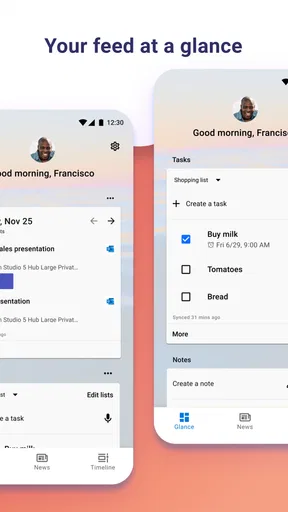
Microsoft Launcher is an Android home-screen replacement that changes the way you organize and access apps, contacts, wallpapers, widgets, and device settings. It adds a customizable feed with calendar information, tasks, news, notes, and recent activities, depending on the Microsoft services you use. It does not replace Android itself, but it becomes the main interface you use to navigate your phone.
Is Microsoft Launcher free to download and use?
Yes, Microsoft Launcher is generally free to download and use on compatible Android devices. Its core features, including home-screen customization, icon arrangement, wallpaper options, app folders, search, and the personalized feed, are available without a subscription. Some connected Microsoft services may have their own account requirements or paid plans, but installing the launcher itself does not normally require payment.
Does Microsoft Launcher require a Microsoft account?
You can use Microsoft Launcher for basic home-screen functions without fully connecting a Microsoft account, but signing in unlocks more of its productivity-focused features. A Microsoft account can synchronize items such as calendar data, tasks, notes, and personalized content across supported Microsoft services. Users who prefer not to sign in can still customize the launcher, although the experience may be less integrated.
Will Microsoft Launcher slow down my phone or affect the battery?
Microsoft Launcher is designed to run on a wide range of Android phones, but its effect on performance depends on your device, Android version, widgets, animations, wallpaper settings, and connected services. On modern phones, everyday performance is usually smooth. Older or less powerful devices may experience occasional delays, while frequent feed updates or location-based features can contribute to additional battery usage.
Can I return to my original Android launcher after installing Microsoft Launcher?
Yes, installing Microsoft Launcher does not permanently change your phone or remove your original launcher. You can switch back through Android’s default-app settings, usually under Settings, Apps, Default apps, or Home app, although the exact menu name varies by manufacturer. You can also uninstall Microsoft Launcher whenever you wish, but customized layouts and launcher-specific settings may not transfer back automatically.
